Summary
WMS Pro uses SQL Express as its dedicated database. In some instances, including if you are needing to remove an older version, or failed installation, you may need to uninstall SQL Express before installing it again.
This article describes how to achieve the uninstallation.
Backup the WMS Pro database
If the system has already had panels connected, and there is data that you may want to keep in your WMS Pro database, it is essential that you back it up first before removing anything.
To back up your WMS Pro database, refer to the article here (opens in a new tab):
WMS Pro Database Backup and Restore using WMS Pro DB Manager
Uninstalling SQL Express
Once a backup has been made (if required), the steps to uninstall SQL Express are as follows (at the time of writing this article).
(Note that since Microsoft do make changes, for latest information you may need to search Microsoft articles for any specific steps if the steps shown below don't appear to match your system).
1. Press the Windows key and search for "Add or remove programs" as follows:
2. In the "Search this list" box, type "SQL." Several entries may appear. Look for "Microsoft SQL Server [year] (64-bit)," where [year] matches your installed version:
3. Select the entry, then click "Uninstall." The SQL Server Installation Wizard will open:
4. Select "Remove" to continue:
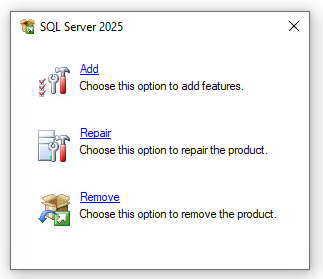
5. After a short loading period, you'll be prompted to choose which SQL Server instance to uninstall. Select the SQL Express instance used by WMS Pro, then click "Next":
6. Make sure the box for "Database Engine Services" is checked, then click "Next":
7. Click "Remove." The wizard will take a few minutes to uninstall SQL Express:
This process should now be completed.
If any further assistance is required in un-installing Microsoft SQL Express, please refer to Microsoft's online help or instructions.